
محددات عامة
المطابقات الدقيقة فقط
البحث في العنوان
البحث في المحتوى
محددات نوع المشاركة

Veed Review (December): The Ultimate Online Video Editor?

منصة:

على شبكة الإنترنت، تطبيقات الهاتف المتحرك

التكامل:

روابط اجتماعية:

ملخص

يعد تحرير الفيديو مهارة يرغب الكثير من الأشخاص في تعلمها، ولكن ليس لدى الجميع الوقت أو المال أو الصبر لإتقانها.

The good news is that there are online tools that can help you edit your videos without any hassle.

مياه is one of those tools. It’s an online video editor that lets you create stunning videos in minutes. Whether you want to add subtitles, trim, crop, rotate, resize, filter, or add music to your videos, Veed can do it all.

But is it worth it? How does it compare to other online video editors? And what are the pros and cons of using it?

In this Veed review, I’ll answer all these questions and more. I’ll also share some tips on how to use Veed effectively.

مراجعة المحرر

النتيجة الإجمالية: 4.5

Veed هو محرر فيديو بسيط وقوي عبر الإنترنت يتيح لك إنشاء مقاطع فيديو مذهلة في دقائق. سواء كنت تريد إضافة ترجمات أو قص أو قص أو تدوير أو تغيير حجم أو تصفية أو تحريك مقاطع الفيديو الخاصة بك، فإن Veed يوفر لك كل ما تحتاجه. يمكنك أيضًا تسجيل شاشتك أو كاميرا الويب أو الصوت وتعديلها على الفور.

الايجابيات

  • واجهة سهلة الاستخدام مع خاصية السحب والإفلات
  • معالجة فيديو سريعة وموثوقة
  • يدعم مجموعة واسعة من تنسيقات الفيديو ودقة الوضوح
  • يقدم خطة مجانية مع مشاريع وصادرات غير محدودة

سلبيات

  • علامة مائية على مقاطع الفيديو المصدرة على الخطة المجانية
  • مساحة تخزين محدودة وطول الفيديو على الخطة المجانية
  • لا توجد ميزات متقدمة مثل مفتاح chroma أو تتبع الحركة أو تثبيت الفيديو

Veed Pricing

التسعير (الخطة الشهرية التي تتم فوترتها سنويًا) يخطط أفضل ل
0 حر Best for anyone who want to try Veed
$18 USD أساسي Best for individual creators and beginners
$30 USD طليعة Best for content creators, marketers, and small businesses
$59 USD عمل Best for teams and businesses requiring collaboration and advanced features

VEED.IO monthly pricing plans.monthly pricing plan for Veed 2

VEED.IO annual pricing plans.yearly pricing plan for Veed 1

اسم الخطة حر أساسي طليعة عمل
محرر الفيديو ✓ ✓ ✓ ✓
Screen Recorder ✓ ✓ ✓ ✓
ترجمات & النسخ ✓ ✓ ✓ ✓
أدوات الذكاء الاصطناعي ✓ ✓ ✓ ✓
الصور الرمزية للذكاء الاصطناعي 1 min/mo 12 min/yr 60 min/yr 240 min/yr
Voice Translation 1 min/mo 60 min/yr 180 min/yr 360 min/yr
Auto Subtitles 30 min/mo 720 min/yr 1,440 min/yr 8,000 min/yr
جودة التصدير 720p 1080p 1080p 4k
طول تصدير الفيديو 10 دقائق 25 minutes 120 minutes 120 minutes
تخزين 2GB 5GB 20GB 50GB

What is Veed

• Who is Veed for?

مياه is a tool that can benefit anyone who needs to edit videos quickly and easily. Whether you’re a marketer, a teacher, a student, a podcaster, a vlogger, or a hobbyist, Veed can help you create professional-looking videos for any purpose. It’s especially useful for those who want to create engaging videos for social media platforms like Instagram, TikTok, YouTube, Facebook, and Twitter.

• Veed Top features

مياه يحتوي على الكثير من الميزات التي تجعله متميزًا عن برامج تحرير الفيديو الأخرى عبر الإنترنت. وهنا بعض منها:

  • Easy and Intuitive Interface: Veed has a simple and user-friendly interface that makes video editing a breeze. You can drag and drop your files, use keyboard shortcuts, and access all the tools you need from the sidebar.how to use Veed 8
  • Powerful and Versatile Editing Tools: Veed has a wide range of editing tools that let you customize your videos to your liking. You can trim, crop, rotate, resize, speed up, slow down, reverse, loop, and split your videos. You can also add filters, transitions, stickers, shapes, text, and emojis to your videos.
  • Automatic Subtitles and Transcription: Veed can automatically generate subtitles and transcripts for your videos using its advanced speech recognition technology. You can also edit, style, and translate your subtitles and transcripts to any language.
  • Audio and Music Editing: Veed can also help you edit your audio and music files. You can add, remove, mute, fade, and adjust the volume of your audio and music. You can also record your own voiceover, add sound effects, and choose from a library of royalty-free music.
  • Screen Recording and Webcam Recording: Veed can also help you record your screen and webcam. You can choose to record your entire screen, a specific window, or a browser tab. You can also record your webcam and microphone at the same time.how to use Veed 5
  • Video Templates and Projects: Veed has a collection of video templates and projects that you can use to create stunning videos in minutes. You can choose from different categories like social media, education, business, and entertainment. You can also save your own projects and reuse them later.how to use Veed 6
  • Cloud Storage and Collaboration: Veed stores all your files and projects in the cloud, so you can access them from anywhere and on any device. You can also share your videos and projects with others and collaborate with them in real-time.

• Tips for using Veed

فيما يلي بعض النصائح التي يمكن أن تساعدك على تحقيق أقصى استفادة مياه:

  • 🌟 Start with a goal: Before you start editing your video, have a clear goal in mind. What is the purpose of your video? Who is your target audience? What message do you want to convey? Having a goal can help you plan and structure your video better.
  • 🎯 Choose the right format and aspect ratio: Depending on where you want to publish your video, you need to choose the right format and aspect ratio. For example, if you want to create a video for Instagram Stories, you need to choose a vertical format and a 9:16 aspect ratio. Veed lets you choose from different presets or customize your own.
  • 📺 Use the timeline and the preview window: Veed has a timeline and a preview window that let you see and edit your video in detail. You can zoom in and out, scrub through, and play and pause your video. You can also use the timeline to add, delete, and rearrange your clips and elements.
  • ⏱️ اجعل الفيديو قصيرًا وحلوًا: As a general rule, shorter videos tend to perform better than longer ones. They are more likely to capture and retain the attention of your viewers. Try to keep your video under 2 minutes, and make sure to include the most important and relevant information in the first few seconds.
  • 🗣️ Add subtitles and captions: Subtitles and captions are not only useful for accessibility, but also for engagement. Many people watch videos without sound, especially on social media. By adding subtitles and captions, you can make sure that your message is delivered and understood by your viewers. Veed can help you add subtitles and captions automatically or manually.
  • 📜 Add a call to action: A call to action is a statement that tells your viewers what you want them to do next. It could be to subscribe, like, comment, share, visit your website, or buy your product. Adding a call to action can help you increase your conversions and achieve your goals.
  • 📚 Learn from the best: One of the best ways to improve your video editing skills is to learn from the best. Watch and analyze videos that are similar to yours, and see what makes them effective. Pay attention to the content, the style, the tone, the pace, the transitions, the effects, and the overall impression. You can also check out Veed’s blog and YouTube channel for more tips and tutorials.
  • 🔍 Review and refine: Before you publish your video, make sure to review and refine it. Watch it several times, and look for any errors, glitches, or inconsistencies. You can also ask for feedback from others, and see if they have any suggestions or comments. Veed lets you export your video in different formats and resolutions, and also gives you a link to share your video online.
  • 💡 استمتع وكن مبدعًا: Video editing is a creative process, and you should enjoy it. Don’t be afraid to experiment with different tools and features, and see what works best for you. Veed gives you the freedom and flexibility to create videos that reflect your personality and vision.

Veed is a tool that can help you create amazing videos in minutes. With its easy and intuitive interface, powerful and versatile editing tools, and cloud storage and collaboration features, Veed is the ultimate online video editor. Try it out today and see for yourself!

Product Hunt Review for Veed

What other users are saying about Veed

I have crosschecked VEED reviews from the community on هانت المنتج.

  • 🌟 VEED has an overall rating of 4.8/5 from 122 reviews.
  • أهم الجوانب الإيجابية التي أبرزها المستخدمون:
    • 💬 Easy to use video editor with helpful AI features
    • 😇 Positive feedback on innovative features and constant evolution
    • 💰تقدير ل abundance of resources like templates, fonts, and music tracks
    • 🚀 High user-friendliness suitable for both novices and experienced editors
    • ⏰ Consistent praise for enhancements and new features
  • 🐾 VEED also received positive feedback for being user-friendly و powerful for video editing.

How to use Veed

Veed.io is designed to be simple and intuitive for anyone to use. Here are some of the main features and how to use them:

Upload or Record Video


1) To start editing a video, you can either upload a video file from your computer, paste a URL from YouTube, Dropbox, or Google Drive, or record a video using your webcam or screen.

how to use Veed 5

how to use Veed 7

2) Once your video is uploaded or recorded, you can choose a project name and an aspect ratio. You can also crop or rotate your video if needed.


3) You will then be taken to the editing interface, where you can see your video timeline, tools, and preview.how to use Veed 8

Trim and Cut Video


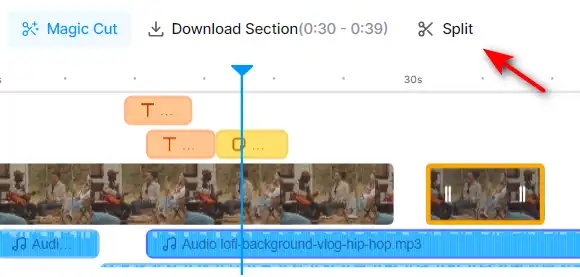
1) To trim or cut your video, you can use the scissors icon on the timeline. You can drag the handles to adjust the start and end points of your video, or click on the scissors icon to split your video into segments.
how to use Veed 26

2) You can then delete, duplicate, or rearrange the segments by clicking on the trash, copy, or drag icons.

أضف ترجمات


1) To add subtitles to your video, you can use the subtitles tool on the left panel. You can either upload an SRT file, type your subtitles manually, or use the auto-subtitles feature.

how to use Veed 25

2) If you use the auto-subtitles feature, you can choose the language of your video and let Veed.io generate subtitles for you. You can then edit, delete, or add subtitles as you wish.


3) You can also customize the appearance of your subtitles, such as the font, size, color, background, and position.

Add Filters and Effects


1) To add filters and effects to your video, you can use the filters tool on the left panel. You can choose from various filters, such as bleu, golden, mist and more.

how to use Veed 11

2) You can also add effects, such as glitch, box blur, pixelate, and more. You can adjust the intensity and duration of the effects using the sliders.how to use Veed 12

Add Stickers and Text


1) To add stickers and text to your video, you can use the elements tool on the left panel. You can choose from various stickers, such as emojis, shapes, icons, and more.

how to use Veed 13

2) You can also add text, such as titles, captions, quotes, and more. You can customize the font, size, color, alignment, and animation of your text.

how to use Veed 14

3) You can drag and drop the stickers and text on your video, and resize and rotate them as you wish.how to use Veed 15

Add Audio and Music


1) To add audio and music to your video, you can use the audio tool on the left panel. You can either upload an audio file from your computer, choose from the Veed.io library of royalty-free music, use “Text To Speech”, “Voiceover” أو “Voice Clone”.

how to use Veed 16

2) You can then adjust the volume, speed, fade in, fade out, and trim your audio using the sliders and buttons.

how to use Veed 17

3) You can also mute or detach the original audio of your video, or use the auto-transcription feature to convert your audio to text.

AI Video

how to use Veed 4

1) To use the AI Video feature, navigate to the AI Video tool on menu. This tool allows you to generate AI Avatar video.

how to use Veed 9

2) Choose the AI Avatar you need for your video.
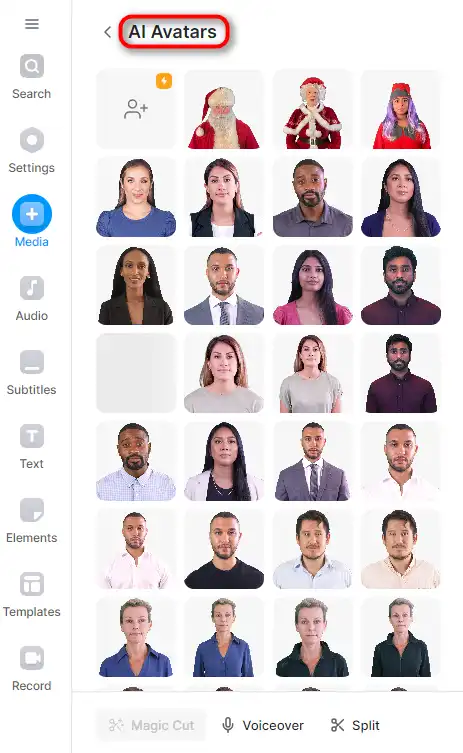
how to use Veed 18


3) Once you’ve entered your script and selected your language, click on the ‘Add to Project’ button. Veed.io will then create a video from your text.

how to use Veed 19

4) You can preview the generated video and make any necessary adjustments. If you’re satisfied with the result, you can save the video to your project.

how to use Veed 21

مولد صوت الذكاء الاصطناعي

how to use Veed 10

1) To use the AI Voice Generator feature, go to the AI Voice Generator tool on the menu. This tool allows you to convert text into speech.

how to use Veed 16

2) You can also choose ‘Voice Clone’ to clone your voice.
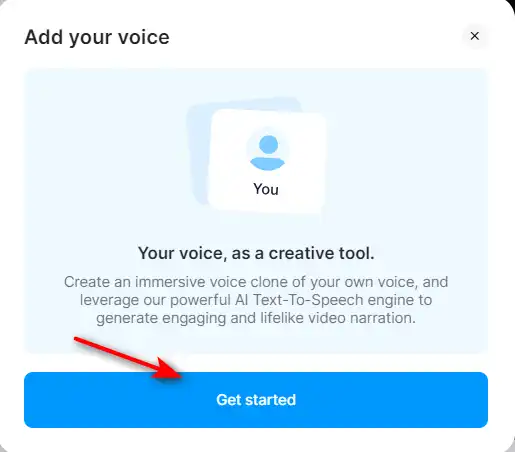
how to use Veed 23

3) Click on the ‘Get Started’ button. Veed.io will provide some texts for you to record.

how to use Veed 24

4) If you’re satisfied with the result, you can use your own clone voice for your project.
Veed Top alternatives

Vidnoz AI Review

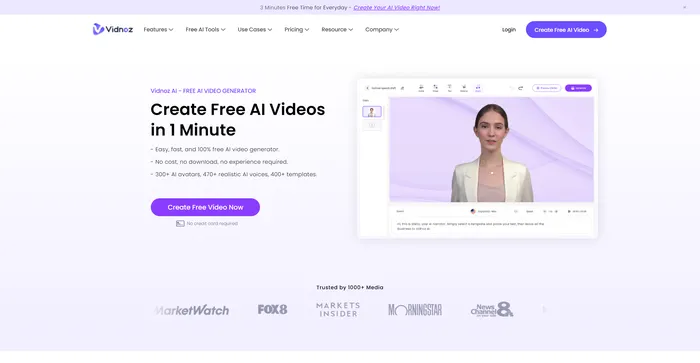
تعد Vidnoz AI Tools منصة قوية لإنشاء مقاطع فيديو جذابة بسرعة وكفاءة. إنه مفيد بشكل خاص لأولئك الذين يرغبون في تحويل النص إلى محتوى فيديو، مما يجعله أداة رائعة للمدونين والمعلمين ومنشئي المحتوى. تجربة المستخدم سلسة، حتى بالنسبة لأولئك الذين قد لا يتمتعون بمهارات واسعة في إنشاء الفيديو. يعمل Vidnoz AI على تبسيط العملية، مما يجعلها في متناول الجميع.

$22.49/mo

Artflow Review

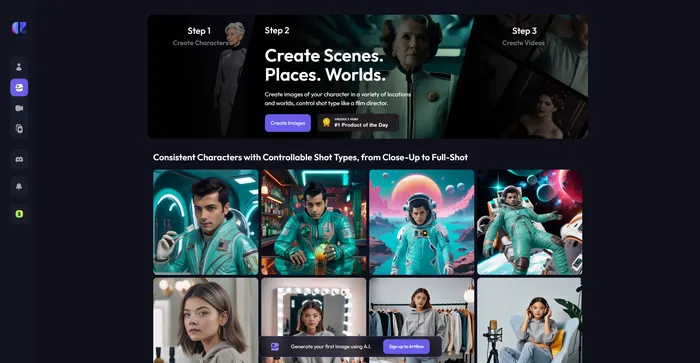
تبرز Artflow.ai كأداة مبتكرة للذكاء الاصطناعي يلبي احتياجات المبدعين الذين يتطلعون إلى تحويل النص إلى رسوم توضيحية فريدة ومرسومة يدويًا وقصص متحركة. إنه مفيد بشكل خاص للمصممين الذين يبحثون عن الإلهام، والمدونين الذين يرغبون في الرسوم التوضيحية المصممة خصيصًا، ورواة القصص الذين يهدفون إلى إضفاء الحيوية على قصصهم بصريًا. من خلال تركيزه على تحويل النص إلى صور، يغير Artflow.ai اللعبة في الرسوم التوضيحية وسرد القصص باستخدام الذكاء الاصطناعي.

D-ID Review

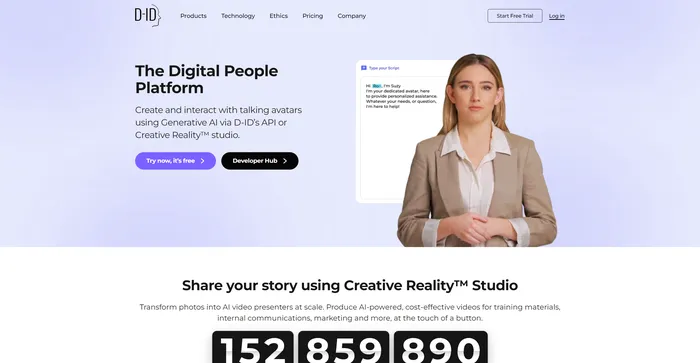
الواقع الإبداعي لـ D-ID™️ يقدم نهجًا مقنعًا لإضفاء الطابع الإنساني على التفاعلات الرقمية من خلال واجهة المستخدم الطبيعية (NUI)، والتي تسمح بإجراء محادثات وجهًا لوجه دون الحاجة إلى الكتابة أو النقر. يؤدي تكامل نماذج اللغات الكبيرة وتحليل المشاعر في NUI إلى وضع D-ID باعتباره المرشح الأوفر حظًا في خدمة العملاء وتطبيقات الذكاء الاصطناعي للمحادثة الأخرى. ومع ذلك، على الرغم من التكنولوجيا المبتكرة وسهولة الاستخدام، أبلغ المستخدمون عن مشكلات تتعلق بجودة عرض الفيديو، والوظائف المحدودة، ومخاوف خدمة العملاء، مما يشير إلى وجود مجال للتحسين.

HeyGen Review

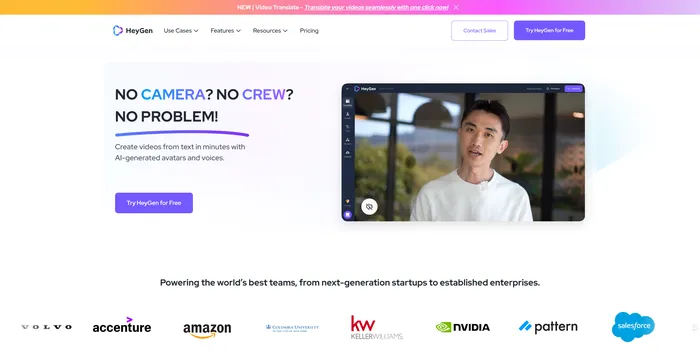
يبرز HeyGen كمولد فيديو متعدد الاستخدامات يعمل بالذكاء الاصطناعي الذي يلبي احتياجات كل من المحترفين والمبتدئين، مما يتيح إنشاء مقاطع فيديو بجودة الاستوديو باستخدام الصور الرمزية والأصوات التي تم إنشاؤها بواسطة الذكاء الاصطناعي. إن قدرتها على المشاركة والشرح والترفيه من خلال إنشاء مقاطع فيديو مدعومة بالذكاء الاصطناعي تجعلها أداة قيمة لتلبية احتياجات المحتوى المتنوعة. مع أكثر من 100 صورة رمزية للذكاء الاصطناعي، وخيارات قابلة للتخصيص، ومجموعة من الأصوات عالية الجودة، يمكن للمستخدمين إنتاج مقاطع فيديو مذهلة في دقائق، مما يوفر وقتًا كبيرًا مقارنة بالطرق التقليدية.

FlexClip Review

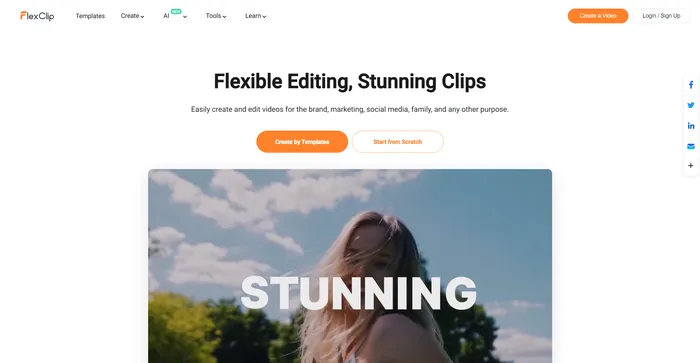
FlexClip هو صانع فيديو بسيط ولكنه قوي عبر الإنترنت يساعدك على إنشاء مقاطع فيديو جذابة في دقائق. سواء كنت تريد إنشاء فيديو ترويجي، أو فيديو تعليمي، أو عرض شرائح، أو مدونة فيديو، فإن FlexClip يلبي احتياجاتك. يمكنك الاختيار من بين مئات القوالب أو البدء من الصفر، وتخصيص الفيديو الخاص بك باستخدام انتقالات مذهلة ومرشحات ونصوص وموسيقى والمزيد.

Opus Clip Review

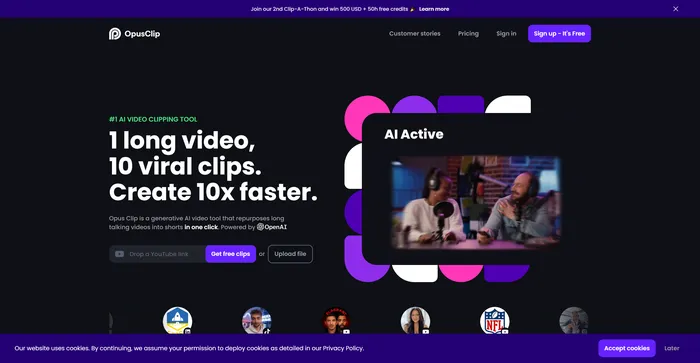
يظهر Opus Clip كأداة قص فيديو عالية الكفاءة تعمل بالذكاء الاصطناعي يلبي احتياجات منشئي المحتوى والمسوقين الذين يهدفون إلى إنتاج أفلام قصيرة سريعة الانتشار. وبفضل قدراته المستندة إلى الذكاء الاصطناعي، فإنه يبسط عملية تحويل مقاطع الفيديو الطويلة إلى مقاطع قصيرة جذابة مناسبة لمنصات التواصل الاجتماعي.

Kapwing Review

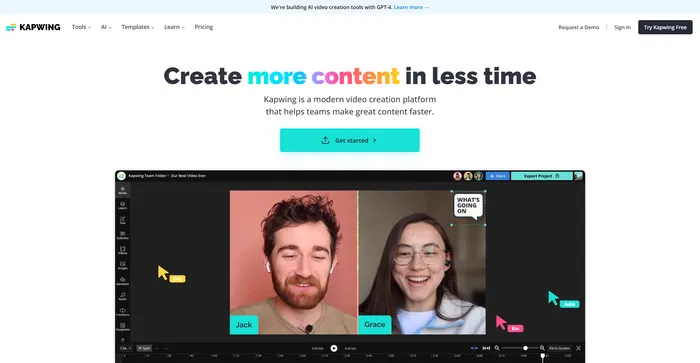
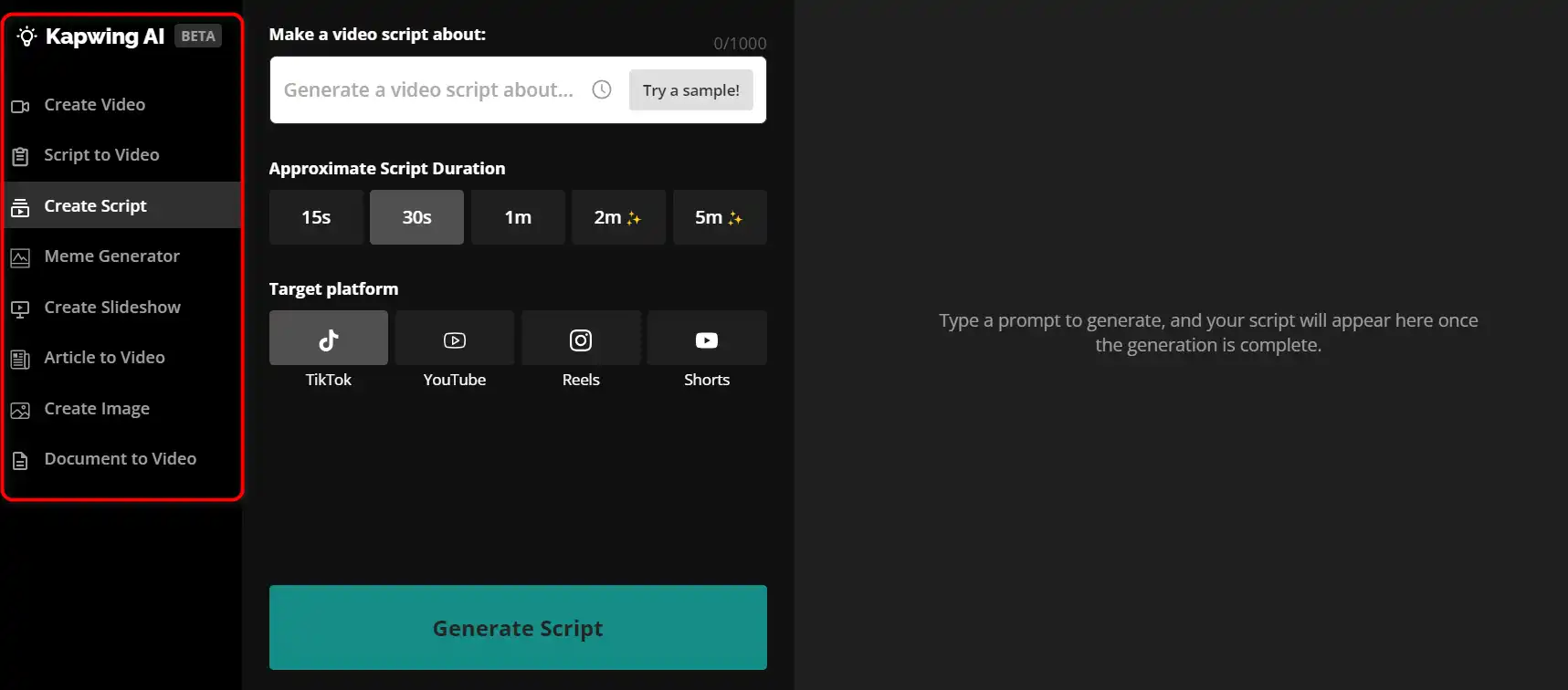
Kapwing هو محرر فيديو متعدد الاستخدامات عبر الإنترنت يتيح لك إنشاء وتحرير ومشاركة مقاطع الفيديو والصور وملفات GIF. سواء كنت تريد إنشاء صورة مضحكة، أو صورة مجمعة، أو عنوان فرعي، أو مونتاج، أو عرض شرائح، فإن Kapwing لديه الأدوات التي تحتاجها لإطلاق العنان لإبداعك.كيفية استخدام كابوينج 29
 

Filmora Review

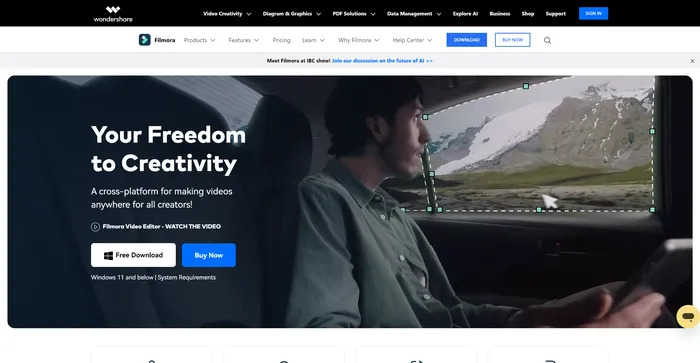
Filmora هو برنامج تحرير فيديو شائع وسهل الاستخدام للمبتدئين والمحترفين على حدٍ سواء. فهو يقدم مجموعة واسعة من الميزات، مثل المرشحات والانتقالات والعناوين والموسيقى والمؤثرات الصوتية والمزيد. يمكنك أيضًا استخدام Filmora لتسجيل الشاشة أو كاميرا الويب أو التعليق الصوتي. يدعم Filmora العديد من التنسيقات والأجهزة، ويمكنك تصدير مقاطع الفيديو الخاصة بك إلى YouTube أو Vimeo أو DVD.

$29.99/qtr

InVideo Review

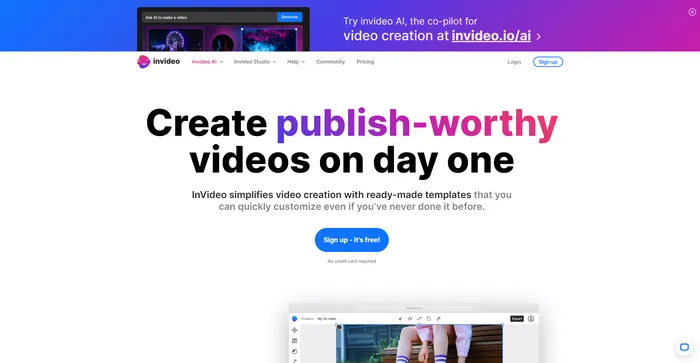
InVideo هو محرر فيديو قوي عبر الإنترنت يتيح لك إنشاء مقاطع فيديو مذهلة في دقائق. سواء كنت ترغب في إنشاء فيديو ترويجي، أو برنامج تعليمي، أو شهادة، أو منشور على وسائل التواصل الاجتماعي، فإن InVideo يوفر لك كل ما تحتاجه. يمكنك الاختيار من بين آلاف القوالب، وتخصيصها باستخدام الوسائط والنصوص والموسيقى الخاصة بك، وتصديرها بجودة HD.

Pictory Review

Pictory هو أفضل برنامج ذكاء اصطناعي لإنشاء مقاطع فيديو ذات علامة تجارية من المحتوى الطويل الخاص بك (النصوص البرمجية، وخطابات المبيعات، ومنشورات المدونات، والندوات عبر الإنترنت، والبودكاست، وتسجيلات Zoom، والمزيد). إذا كنت منشئ محتوى أو مسوقًا وتبحث عن طريقة سهلة لتحويل عملك المكتوب إلى نموذج فيديو، فإن Pictory هو أفضل خيار وجدته للبدء بسرعة.

يستخدم Pictory الذكاء الاصطناعي المتقدم لإنشاء مقطع فيديو تلقائيًا من المحتوى المكتوب الخاص بك، مع تعليق صوتي احترافي ومقاطع فيديو مخزنة وتسميات توضيحية وعلامة تجارية. يمكنك أيضًا تعديل الفيديو الخاص بك عن طريق تغيير النص والصوت والمقاطع والموسيقى. يحتوي Pictory على مكتبة ضخمة من مقاطع الفيديو والصور والموسيقى للاختيار من بينها، ويمكنك أيضًا تحميل الوسائط الخاصة بك. يمكنك أيضًا تخصيص علامتك التجارية باستخدام شعارك ونظام الألوان والمقدمة والخاتمة.

Veed FAQ

How much does Veed cost? +

Veed offers a free plan that allows users to create and export up to 10 minutes of video per month, with a watermark and limited features. Veed also offers three paid plans: Basic, Pro, and Business. The Basic plan costs $18 per month and allows users to create and export 25 minutes of video, with no watermark. The Pro plan costs $30 per month and includes everything in the Pro plan, plus priority support. The Business plan costs $59 per month and includes everything in the Business plan, plus Video Analytics, Video Call-to-action, and dedicated account manager.

What are the benefits of using Veed? +

Veed is a powerful and easy-to-use video editing platform that can help users create engaging and professional videos for various purposes. Some of the benefits of using Veed are:- It works on any device and browser, no installation or download required.
– It supports a wide range of video formats and resolutions, including 4K and vertical videos.
– It has a rich set of features and tools to enhance and customize videos, such as subtitles, filters, animations, audio tools, and more.
– It allows users to share videos directly to social media platforms, such as YouTube, Instagram, Facebook, and Twitter.
– It offers fast and reliable video processing and rendering, with cloud storage and backup.
– It has a friendly and responsive customer support team, as well as a helpful community and blog.

How do I start using Veed? +

To start using Veed, you need to create an account on their website. You can sign up with your email address, Google account, or Microsoft account. Once you have an account, you can upload your video file or paste a URL of a video from the web. Then, you can use the Veed editor to edit your video as you wish. You can also browse and use the templates and tutorials provided by Veed to get inspired and learn new skills. When you are done editing, you can export and download your video, or share it online.

How do I add subtitles to my video? +

To add subtitles to your video, you can use the Subtitle tool in the Veed editor. You can either type in your subtitles manually, or use the auto-transcribe feature to generate subtitles automatically from your video’s audio. You can also upload a subtitle file (such as SRT or VTT) if you have one. You can then edit, style, and position your subtitles as you like. You can also translate your subtitles to different languages using the auto-translate feature.

How do I trim or crop my video? +

To trim or crop your video, you can use the Trim or Crop tools in the Veed editor. To trim your video, you can drag the handles on the timeline to adjust the start and end points of your video. You can also use the Split tool to cut your video into segments and delete the unwanted parts. To crop your video, you can drag the corners of the crop box to resize and reposition your video. You can also use the Resize tool to change the aspect ratio and resolution of your video.

How do I add filters or effects to my video? +

To add filters or effects to your video, you can use the Filters tools in the Veed editor. You can choose from a variety of filters and effects, such as sepia, blur, glitch, and more. You can also adjust the intensity and duration of the filters and effects. You can apply filters and effects to the whole video, or to specific segments or layers.

How do I add animations or stickers to my video? +

To add animations or stickers to your video, you can use the Elements tool in the Veed editor. You can browse and select from a library of animations and stickers, such as emojis, shapes, icons, and more. You can also upload your own images or GIFs to use as elements. You can then drag and drop the elements to your video, and resize, rotate, and position them as you like. You can also adjust the timing and duration of the elements, and apply animations to them, such as fade, bounce, slide, and more.

How do I edit the audio of my video? +

To edit the audio of your video, you can use the Audio tool in the Veed editor. You can mute, trim, or split the audio of your video, or replace it with another audio file. You can also adjust the volume, speed of the audio, or apply effects, such as fade in or fade out. You can also add music or sound effects to your video, either from the Veed library or from your own files. You can then mix and balance the audio tracks, and fade in or out the audio.

How do I export or share my video? +

To export or share your video, you can use the Export tools in the Veed editor. You can choose the format and quality of your video, and then download it to your device, or copy the link to your video. You can also share your video directly to social media platforms, such as YouTube, Instagram, Facebook, and Twitter. You can also embed your video to your website or blog, or send it via email or messenger.

Veed Conclusion

Veed.io is a powerful and versatile online video editor that can help you create stunning videos in minutes.

Whether you want to make a video for social media, YouTube, marketing, education, or personal use, Veed.io has everything you need to make it happen.

Try Veed.io today and unleash your creativity with video.

أدوات الذكاء الاصطناعي المميزة

Veed Related AI Tools

Descript Review

فيديو الكل في واحد & تحرير البودكاست، سهل مثل المستند.

Vidnoz AI Review

أنشئ مقاطع فيديو جذابة مجانية تعمل بالذكاء الاصطناعي بشكل أسرع 10 مرات

Cutout.Pro Review

تحرير الصور بالذكاء الاصطناعي | منصة إنشاء المحتوى المرئي، الأفضل لتصميم الصور والفيديو

D-ID Review

الخيار رقم 1 لمنصة إنشاء الفيديو المولدة بالذكاء الاصطناعي