
محددات عامة
المطابقات الدقيقة فقط
البحث في العنوان
البحث في المحتوى
محددات نوع المشاركة

Filmora Review (December): Discover Why It’s Worth Your Money!

منصة:

سطح المكتب، على شبكة الإنترنت، تطبيقات الهاتف المتحرك

التكامل:

روابط اجتماعية:

ملخص

Video editing is a skill that can help you create amazing content for your personal or professional projects. But not everyone has the time or the budget to invest in expensive and complex software.

That’s where Filmora comes in.

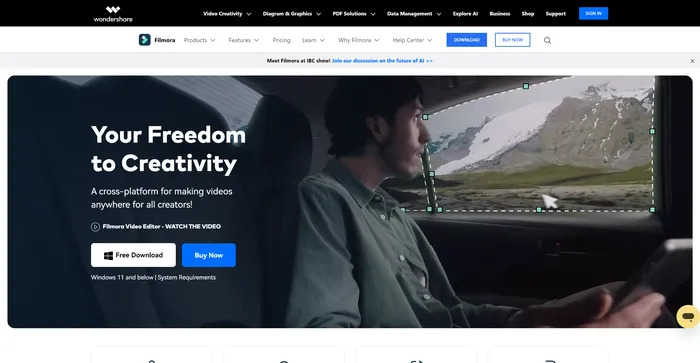
Filmora is a video editing software that aims to make video editing accessible and fun for everyone. It offers a range of features and effects that can help you transform your videos into stunning creations.

But how does it compare to other video editing software on the market? Is it worth your money? In this Filmora review, I will answer these questions and more.

مراجعة المحرر

النتيجة الإجمالية: 4.2

Filmora هو برنامج تحرير فيديو شائع وسهل الاستخدام للمبتدئين والمحترفين على حدٍ سواء. فهو يقدم مجموعة واسعة من الميزات، مثل المرشحات والانتقالات والعناوين والموسيقى والمؤثرات الصوتية والمزيد. يمكنك أيضًا استخدام Filmora لتسجيل الشاشة أو كاميرا الويب أو التعليق الصوتي. يدعم Filmora العديد من التنسيقات والأجهزة، ويمكنك تصدير مقاطع الفيديو الخاصة بك إلى YouTube أو Vimeo أو DVD.

الايجابيات

  • واجهة بديهية وسهلة الاستخدام
  • أدوات تحرير قوية ومتعددة الاستخدامات
  • مجموعة كبيرة من الآثار والموارد
  • سعر مناسب ورخصة مدى الحياة

سلبيات

  • تتطلب بعض الميزات الاتصال بالإنترنت
  • العلامة المائية على مقاطع الفيديو المصدرة في النسخة المجانية
  • خيارات دعم العملاء محدودة

Filmora Pricing

التسعير (الخطة الشهرية) يخطط أفضل ل
29.99 USD Cross-Platform Quarterly Plan Best for single users who want to explore the tool’s features
49.99 USD Cross-Platform Annual Plan Best for users with multiple devices across different platforms
79.99 USD Perpetual Best for users who prefer one-time payment

Filmora individual pricing plans.Individual yearly pricing plan for Filmora 1

Filmora business pricing plans.Business yearly pricing plan for Filmora 2

اسم الخطة Cross-Platform Quarterly Plan Cross-Platform Annual Plan Perpetual
Update Policy Keep Up to Date with Future Versions Keep Up to Date with Future Versions Enjoy Filmora 13 Updates Only
Export without Watermark نعم نعم نعم
التخزين السحابي 1GB 1GB 1GB
AI Credits غير محدود غير محدود 2000
Filmora Creative Assets 7-Day Free Trial 7-Day Free Trial 7-Day Free Trial
Preset Templates 10K+ 10K+ 10K+
Copyrighted Music 100K+ 100K+ 100K+
Keyframing نعم نعم نعم
Speed Ramping نعم نعم نعم
Access to All Features and Tools نعم نعم نعم
Platforms Supported Cross-Platform Cross-Platform One platform only

What is Filmora

• Who is Filmora for?

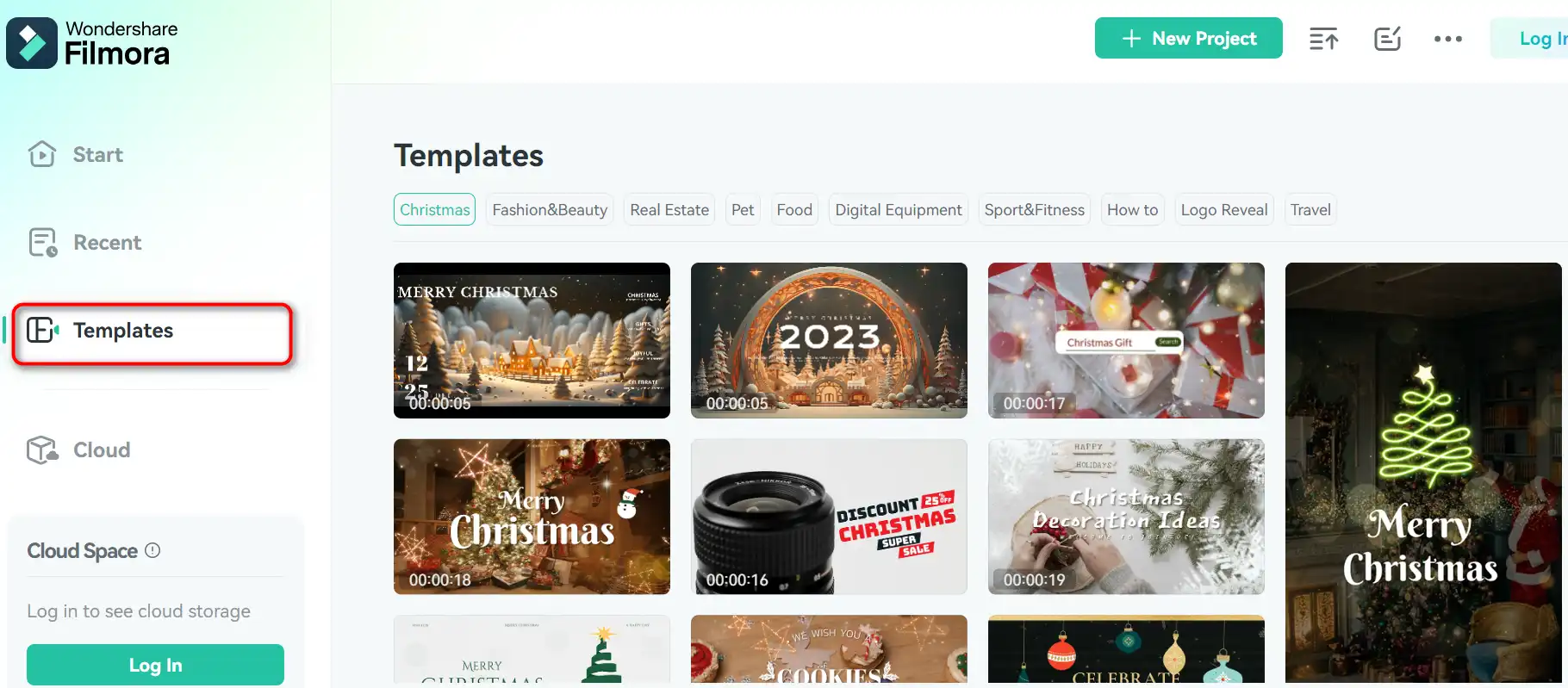
Filmora is designed for beginners, novices, and casual users who want to edit videos without too much hassle. It has a simple and intuitive interface that makes it easy to learn and use. It also has a large library of templates, transitions, filters, and effects that you can apply to your videos with just a few clicks.how to use Filmora 7
If you are looking for a video editing software that can handle more advanced tasks, such as motion tracking, multicam editing, or 3D editing, Filmora might not be the best choice for you. It lacks some of the features and tools that you can find in more professional software, such as Adobe Premiere Pro or Final Cut Pro.

• Filmora Top features

Filmora has a lot of features that can help you create impressive videos. Here are some of the top ones:

  • إنشاء فيديو سهل: You can import your videos from your computer, camera, or phone, and start editing them right away. You can trim, crop, rotate, split, merge, and adjust your clips easily. You can also add titles, subtitles, credits, and lower thirds to your videos.how to use Filmora 4
  • Script To Video: This is a new feature that lets you turn your script into a video automatically. You just need to write your script, choose a theme, and let Filmora do the rest. It will generate a video with AI voices, matching footage, and music for you.how to use Filmora 3
  • Video Highlights: This is another new feature that lets you create short and engaging videos from your long-form videos. You can use it to extract highlights from your Zoom, Teams, Webinar, or Podcast recordings, and turn them into branded video clips for social media.

• Tips for using Filmora

فيما يلي بعض النصائح التي يمكن أن تساعدك في تحقيق أقصى استفادة منها Filmora:

  • 🌟 Explore the resources: Filmora has a lot of resources that can help you learn and improve your video editing skills. You can check out the tutorials, guides, blogs, and community forums on their website. You can also watch the videos on their YouTube channel, where they share tips, tricks, and inspiration.
  • 🎯 Choose the right mode: Filmora has two modes: Easy Mode and Full Feature Mode. Easy Mode is for beginners who want to create a video quickly and easily. It has a simplified interface and a limited number of options. Full Feature Mode is for more experienced users who want to have more control and customization over their videos. It has a more advanced interface and a wider range of options.
  • 📺 Optimize your video settings: Before you export your video, you should optimize your video settings to ensure the best quality and performance. You can adjust the resolution, frame rate, bitrate, and format of your video according to your needs and preferences. You can also choose a preset for your target device or platform, such as YouTube, Facebook, or Instagram.
  • ⏱️ Save your project frequently: To avoid losing your work due to unexpected errors or crashes, you should save your project frequently. You can also enable the auto-save feature in the preferences, which will save your project every few minutes.
  • 🗣️ Give feedback and suggestions: Filmora is constantly improving and adding new features and effects to their software. If you have any feedback or suggestions, you can share them with the Filmora team through their website or social media. They are always open to hearing from their users and making their software better.

I hope you enjoyed this Filmora review and found it helpful. If you are interested in trying out Filmora, you can download it from their website and start your free trial today. Happy video editing! 🎬
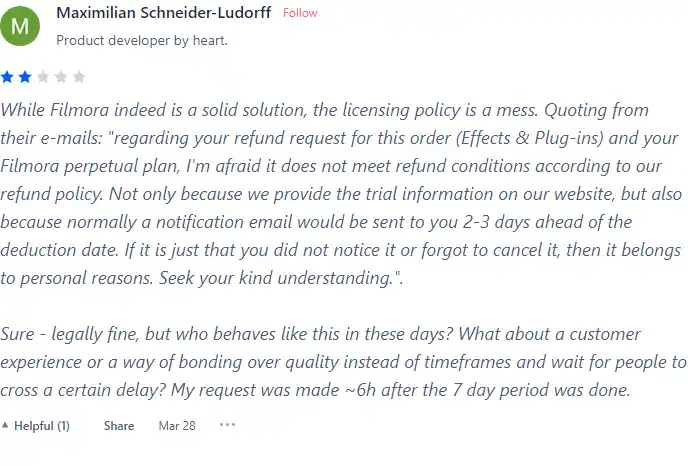
Product Hunt Review for Filmora

What other users are saying about Filmora

  • 🌟 Filmora has gathered 452 reviews overall, with mixed ratings.
  • Most positive aspects highlighted by reviewers:
    • 💬 Ease of use, particularly for non-techy individuals
    • 😇 Some users praised its AI tools for fast and simple editing
    • 💰 Free of cost for certain features like Meme Maker
    • 🚀 Some users appreciated its simplicity and suitability for quick edits
    • ⏰ Positive feedback on upcoming features and potential improvements
  • 🐾 Some users found language barriers and bugs in the interface frustrating.
  • ☁️ Negative reviews stemmed from issues regarding licensing policies and customer support responsiveness.

How to use Filmora

In this section, I will show you how to use Filmora’s main features and functions. Filmora is available for Windows and Mac, and you can download it from the official website.

Import and Organize Media

1) To start a new project, launch Filmora and choose the aspect ratio for your video. You can also select a template from the Filmstock library.
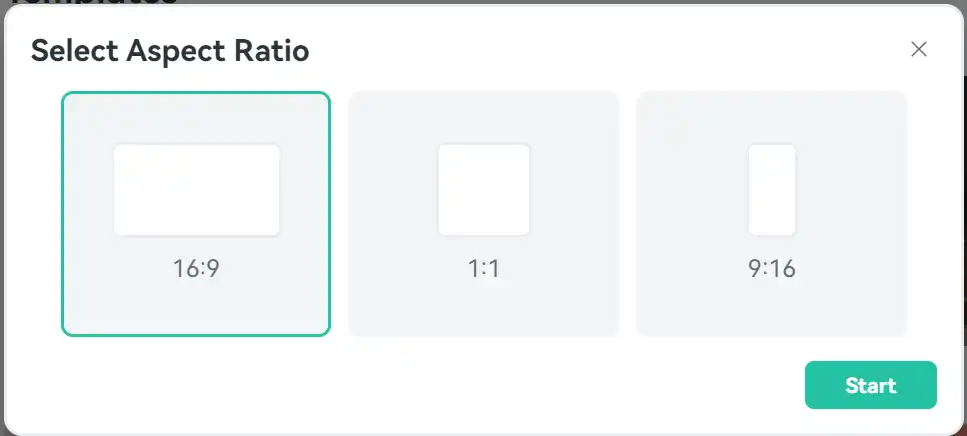
how to use Filmora 9

2) To import media files, click on the “Import” button on the top left corner of the screen. You can also drag and drop files from your computer to the media library.

3) To organize your media files, you can create folders, rename files, and sort them by name, duration, type, or date.

4) To preview your media files, double-click on them or drag them to the preview window. You can also use the play, pause, stop, and volume buttons to control the playback.

Edit and Enhance Videos

1) To edit your videos, drag and drop them to the timeline. You can also right-click on them and choose “Add to Timeline at Playhead”.

2) To trim, split, crop, rotate, or adjust the speed of your clips, use the toolbar above the timeline or right-click on them and choose the desired option.

3) To add transitions, filters, elements, titles, or stickers to your videos, click on the corresponding tab on the top right corner of the screen. You can browse through the categories and drag and drop your favorite ones to the timeline.

4) To adjust the color, brightness, contrast, saturation, or temperature of your videos, click on the “Color” tab on the top right corner of the screen. You can use the sliders, presets, or advanced options to fine-tune your videos.

5) To add music, voiceover, or sound effects to your videos, click on the “صوتي” tab on the top right corner of the screen. You can import your own audio files or use the built-in library of Filmora. You can also adjust the volume, fade in, fade out, or mute the audio tracks.

Export and Share Videos

1) To export your videos, click on the “يصدّر” button on the top right corner of the screen. You can choose the format, resolution, quality, and location of your videos.

2) To share your videos, you can upload them directly to YouTube, Vimeo, Facebook, or Instagram. You can also burn them to a DVD or save them to your device.
Filmora Top alternatives

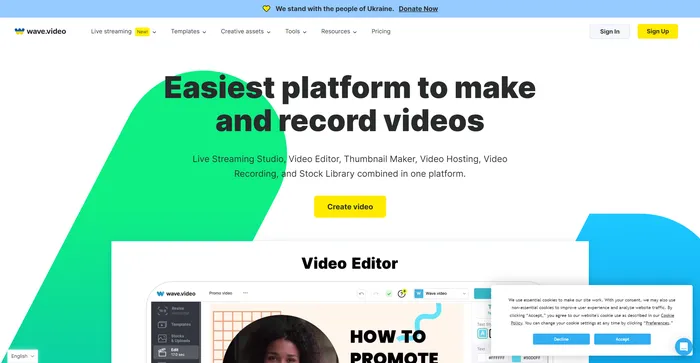
Wave.video Review

Wave.video هي أداة شاملة لإنشاء الفيديو مدعومة بالذكاء الاصطناعي التي تتميز بواجهتها البديهية وميزاتها القوية. وقد نال استحسانًا كبيرًا لقدراته على تحرير الفيديو المستندة إلى السحابة، مما يسمح للمستخدمين بالعمل من أي مكان. توفر المنصة مجموعة من الميزات بما في ذلك استوديو البث المباشر وتطبيق تسجيل الفيديو وخيارات استضافة الفيديو ومحرر المقاطع. كما يضم أيضًا مكتبة واسعة تضم أكثر من 200 مليون مقطع فيديو وصورة وصوت، بالإضافة إلى أكثر من ألف قالب فيديو قابل للتخصيص.

لقد أثنى المستخدمون على Wave.video لسهولة استخدامه وجودة مخرجاته. وقد حظيت قدرات الذكاء الاصطناعي للمنصة، مثل إنشاء مقاطع فيديو من النص، بتقدير خاص. على الرغم من ذلك، لاحظ بعض المستخدمين أن عملية عرض الفيديو يمكن أن تستغرق وقتًا طويلاً.

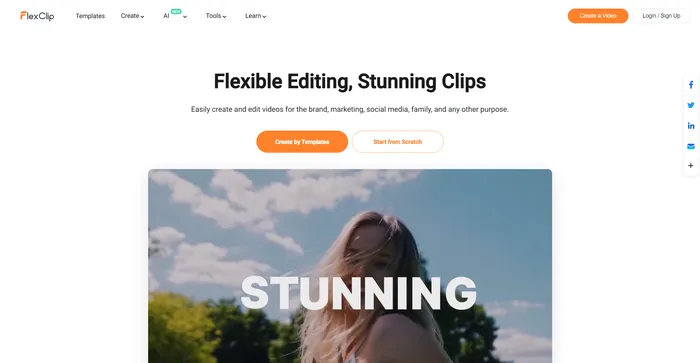
FlexClip Review

FlexClip هو صانع فيديو بسيط ولكنه قوي عبر الإنترنت يساعدك على إنشاء مقاطع فيديو جذابة في دقائق. سواء كنت تريد إنشاء فيديو ترويجي، أو فيديو تعليمي، أو عرض شرائح، أو مدونة فيديو، فإن FlexClip يلبي احتياجاتك. يمكنك الاختيار من بين مئات القوالب أو البدء من الصفر، وتخصيص الفيديو الخاص بك باستخدام انتقالات مذهلة ومرشحات ونصوص وموسيقى والمزيد.

Pika Labs Review

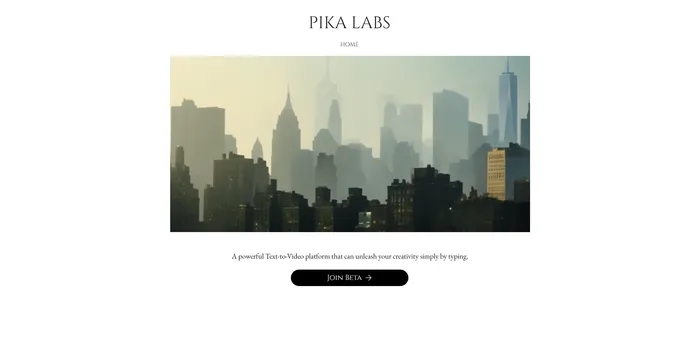
Pika Labs هو برنامج متطور للذكاء الاصطناعي يتيح لك إنشاء مقاطع فيديو مذهلة من مدخلات النص أو الصورة أو الفيديو. سواء كنت تريد إنشاء مقطع دعائي سينمائي، أو رسم كاريكاتوري متحرك، أو محاكاة واقعية، يمكن أن تساعدك Pika Labs في تحويل أفكارك إلى قصص مرئية. تستخدم Pika Labs نماذج الذكاء الاصطناعي الإنتاجية لإنتاج مقاطع فيديو عالية الجودة بأنماط وتنسيقات مختلفة، مما يمنحك الحرية والمرونة للتعبير عن إبداعك.

Opus Clip Review

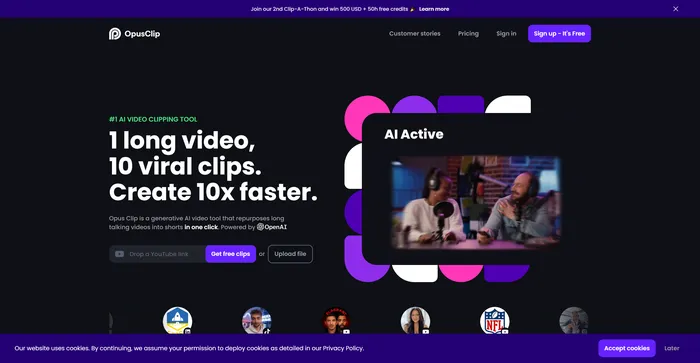
يظهر Opus Clip كأداة قص فيديو عالية الكفاءة تعمل بالذكاء الاصطناعي يلبي احتياجات منشئي المحتوى والمسوقين الذين يهدفون إلى إنتاج أفلام قصيرة سريعة الانتشار. وبفضل قدراته المستندة إلى الذكاء الاصطناعي، فإنه يبسط عملية تحويل مقاطع الفيديو الطويلة إلى مقاطع قصيرة جذابة مناسبة لمنصات التواصل الاجتماعي.

Veed Review

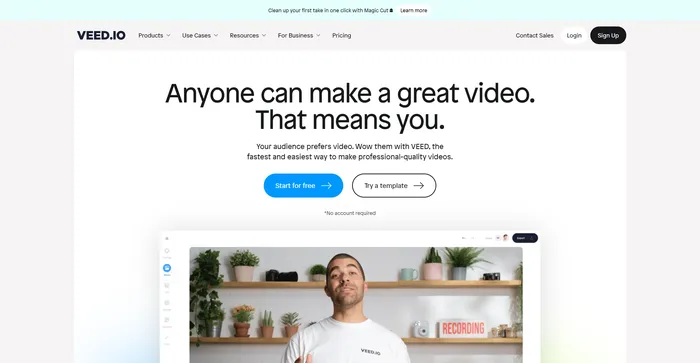
Veed هو محرر فيديو بسيط وقوي عبر الإنترنت يتيح لك إنشاء مقاطع فيديو مذهلة في دقائق. سواء كنت تريد إضافة ترجمات أو قص أو قص أو تدوير أو تغيير حجم أو تصفية أو تحريك مقاطع الفيديو الخاصة بك، فإن Veed يوفر لك كل ما تحتاجه. يمكنك أيضًا تسجيل شاشتك أو كاميرا الويب أو الصوت وتعديلها على الفور.

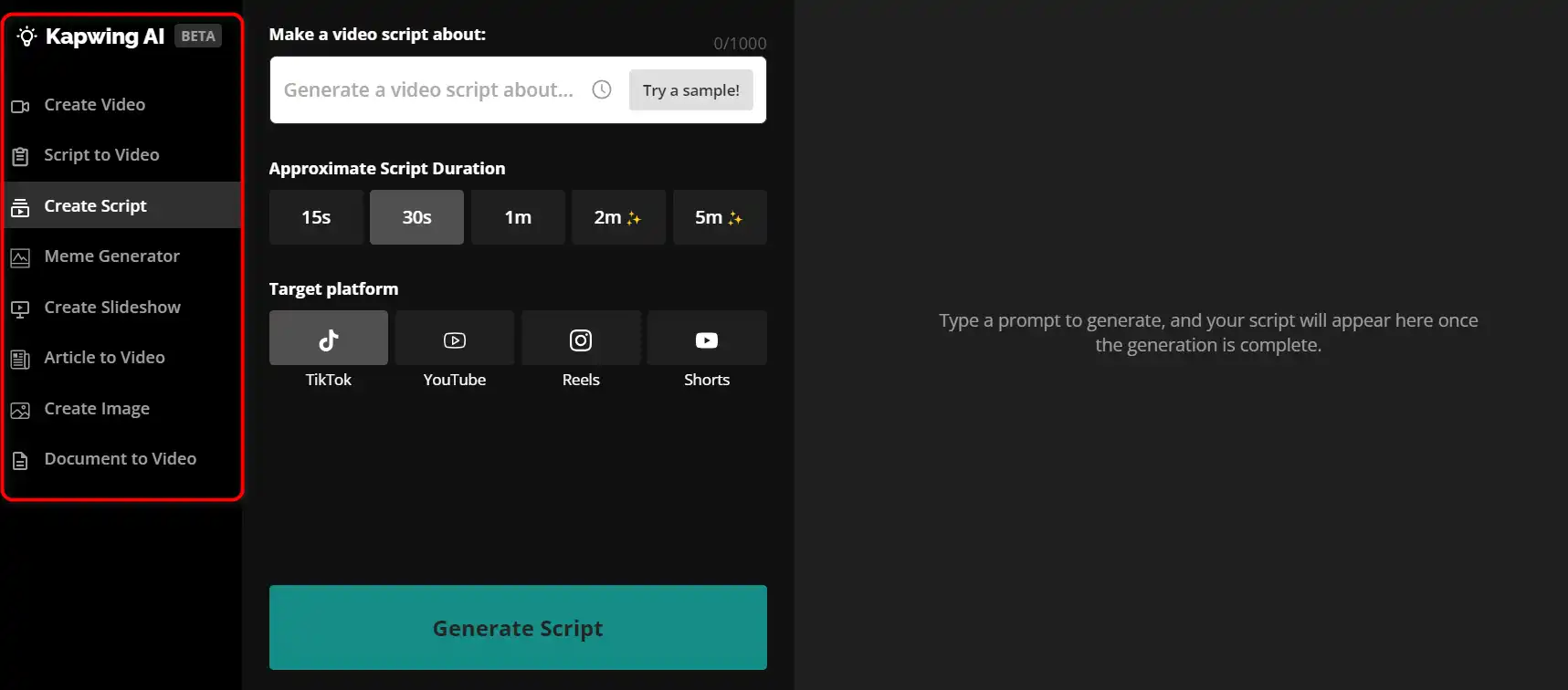
Kapwing Review

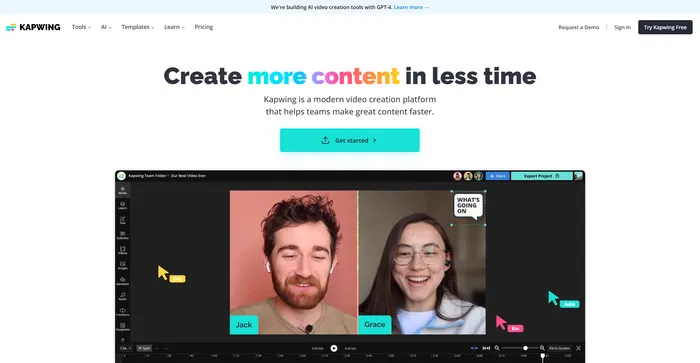
Kapwing هو محرر فيديو متعدد الاستخدامات عبر الإنترنت يتيح لك إنشاء وتحرير ومشاركة مقاطع الفيديو والصور وملفات GIF. سواء كنت تريد إنشاء صورة مضحكة، أو صورة مجمعة، أو عنوان فرعي، أو مونتاج، أو عرض شرائح، فإن Kapwing لديه الأدوات التي تحتاجها لإطلاق العنان لإبداعك.كيفية استخدام كابوينج 29
 

Kaiber Review

Kaiber هو منشئ فيديو يعمل بالذكاء الاصطناعي يمكنه إنشاء مقاطع فيديو متحركة من المطالبات النصية والتفضيلات الأسلوبية. إنها منصة على شبكة الإنترنت تهدف إلى تبسيط عملية إنشاء الفيديو وإطلاق العنان لإبداعك. ومع ذلك، فهو يحتوي أيضًا على بعض العيوب التي يجب أن تكون على دراية بها قبل استخدامه.

InVideo Review

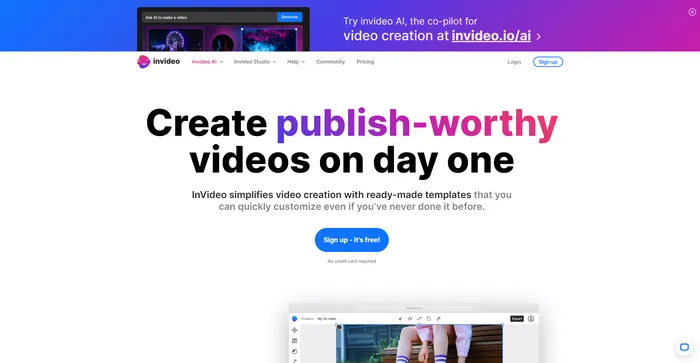
InVideo هو محرر فيديو قوي عبر الإنترنت يتيح لك إنشاء مقاطع فيديو مذهلة في دقائق. سواء كنت ترغب في إنشاء فيديو ترويجي، أو برنامج تعليمي، أو شهادة، أو منشور على وسائل التواصل الاجتماعي، فإن InVideo يوفر لك كل ما تحتاجه. يمكنك الاختيار من بين آلاف القوالب، وتخصيصها باستخدام الوسائط والنصوص والموسيقى الخاصة بك، وتصديرها بجودة HD.

Pictory Review

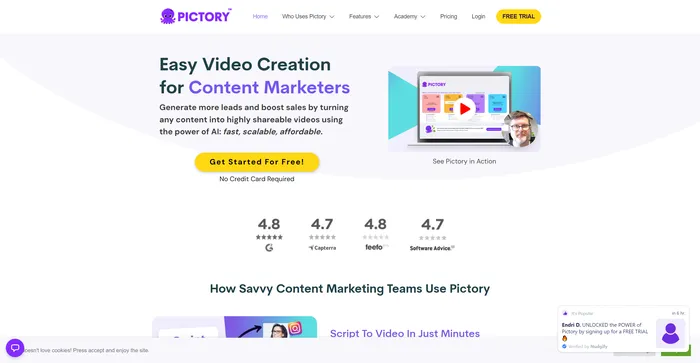
Pictory هو أفضل برنامج ذكاء اصطناعي لإنشاء مقاطع فيديو ذات علامة تجارية من المحتوى الطويل الخاص بك (النصوص البرمجية، وخطابات المبيعات، ومنشورات المدونات، والندوات عبر الإنترنت، والبودكاست، وتسجيلات Zoom، والمزيد). إذا كنت منشئ محتوى أو مسوقًا وتبحث عن طريقة سهلة لتحويل عملك المكتوب إلى نموذج فيديو، فإن Pictory هو أفضل خيار وجدته للبدء بسرعة.

يستخدم Pictory الذكاء الاصطناعي المتقدم لإنشاء مقطع فيديو تلقائيًا من المحتوى المكتوب الخاص بك، مع تعليق صوتي احترافي ومقاطع فيديو مخزنة وتسميات توضيحية وعلامة تجارية. يمكنك أيضًا تعديل الفيديو الخاص بك عن طريق تغيير النص والصوت والمقاطع والموسيقى. يحتوي Pictory على مكتبة ضخمة من مقاطع الفيديو والصور والموسيقى للاختيار من بينها، ويمكنك أيضًا تحميل الوسائط الخاصة بك. يمكنك أيضًا تخصيص علامتك التجارية باستخدام شعارك ونظام الألوان والمقدمة والخاتمة.

Capcut Review

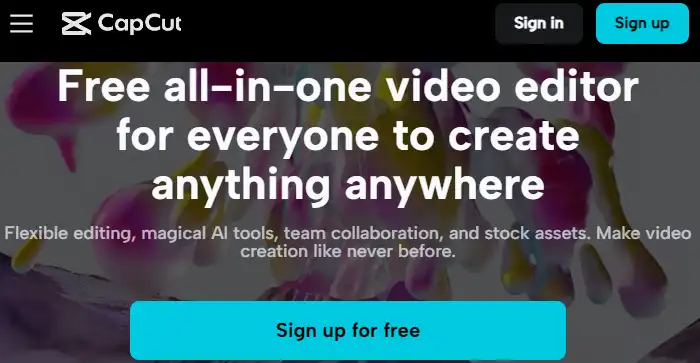
CapCut هو تطبيق لتحرير الفيديو على الأجهزة المحمولة يقدم مجموعة من الميزات لإنشاء مقاطع فيديو قصيرة ومشاركتها. وهي مملوكة لشركة ByteDance، وهي نفس الشركة التي تقف وراء TikTok، وتتكامل بشكل جيد مع منصة التواصل الاجتماعي الشهيرة. CapCut مجاني للاستخدام، ولكن بعض الميزات المتقدمة تتطلب الاشتراك.

Filmora FAQ

How much does Filmora cost? +

Filmora offers different pricing plans for different needs. The annual plan costs $49.99 per year, the lifetime plan costs $79.99 for a one-time payment. Filmora also offers a free trial version with no time limit, but with a watermark on the exported videos.

What are the system requirements for Filmora? +

The minimum system requirements for Filmora are:- Operating system: Windows 7/Windows 8.1/Windows 10 (64 bit OS) or macOS v10.11 or later
– Processor: Intel i3 or better multicore processor, 2GHz or above
– RAM: 8 GB RAM (16GB required for HD and 4K videos)
– Graphics: Intel HD Graphics 5000 or later; NVIDIA GeForce GTX 700 or later; AMD Radeon R5 or later
– Disk: At least 10GB free hard-disk space for installation (SSD-Solid State Disk recommended for editing HD and 4K videos)

How can I import and export videos in Filmora? +

To import videos in Filmora, you can either drag and drop them to the media library, or click on the Import button and choose from the options. You can import videos from your computer, external devices, cameras, or online sources. To export videos in Filmora, you can either click on the Export button and choose from the options, or use the Share button to upload your videos directly to YouTube, Vimeo, or other platforms. You can export videos in various formats, resolutions, and quality settings.

How can I edit videos in Filmora? +

To edit videos in Filmora, you can use the timeline to arrange, trim, split, crop, rotate, and adjust your clips. You can also use the toolbar to add transitions, filters, titles, stickers, music, sound effects, and more. You can preview your edits in the preview window and adjust the playback speed, volume, and resolution. You can also use the advanced editing features, such as green screen, split screen, picture-in-picture, color correction, audio mixer, and more.

How can I use the Filmstock library in Filmora? +

The Filmstock library is a collection of royalty-free music, sound effects, filters, transitions, titles, and stickers that you can use in your videos. To access the Filmstock library, you need to have a Filmora account and an internet connection. You can browse the library by categories, themes, or keywords, and download the items you want to use. You can also preview the items before downloading them. Once downloaded, the items will appear in your media library and you can drag and drop them to your timeline.

How can I get help with Filmora? +

You can get help with Filmora by visiting the official website, where you can find tutorials, guides, FAQs, and support. You can also join the Filmora community, where you can share your videos, get feedback, and learn from other users. You can also contact the Filmora team via email, phone, or live chat.

Filmora Conclusion

Filmora is a versatile and easy-to-use video editing software that can help you create amazing videos in minutes.

Whether you want to make a slideshow, a vlog, a tutorial, or a movie, Filmora has everything you need to unleash your creativity.

With Filmora, you can edit, enhance, and share your videos with the world. Try it for free today and see for yourself!

أدوات الذكاء الاصطناعي المميزة

Filmora Related AI Tools

Descript Review

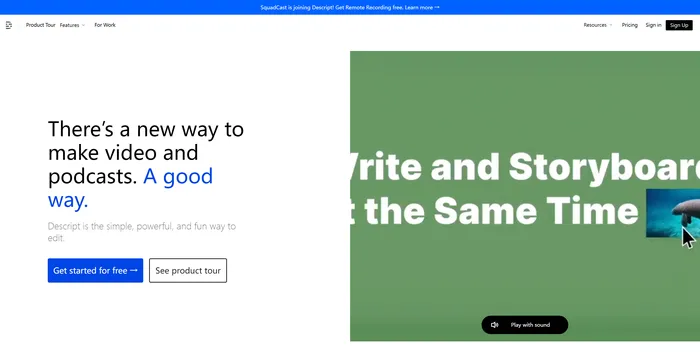
فيديو الكل في واحد & تحرير البودكاست، سهل مثل المستند.

Vidnoz AI Review

أنشئ مقاطع فيديو جذابة مجانية تعمل بالذكاء الاصطناعي بشكل أسرع 10 مرات

Cutout.Pro Review

تحرير الصور بالذكاء الاصطناعي | منصة إنشاء المحتوى المرئي، الأفضل لتصميم الصور والفيديو